Validating files before final delivery to the client is often a tedious task. At the delivery stage the focus is often on a different set of checks than during subtitle creation. The File Validator tool lets you select only relevant checks, automates the file conversion and file naming, and speeds up the entire delivery process by simply dropping a subtitle file into the File Validator.
Different clients have different parameters and different file formats. The File Validator allows the user to select only relevant checks for each client, which speeds up the process. With the right settings in the client profile, the File Validator will only flag issues that are relevant at final delivery for a particular client.
How it works:
1. Open the File Validator from the Tools menu or Tools tab.
2. Drop a subtitle file into the dialog to open it for validation.
3. A complete global file check will run, listing all issues found within the file.
4. Select an Active profile to switch between different client profiles containing all validation settings.
5. Clicking on an error shows the subtitle text in the preview window.
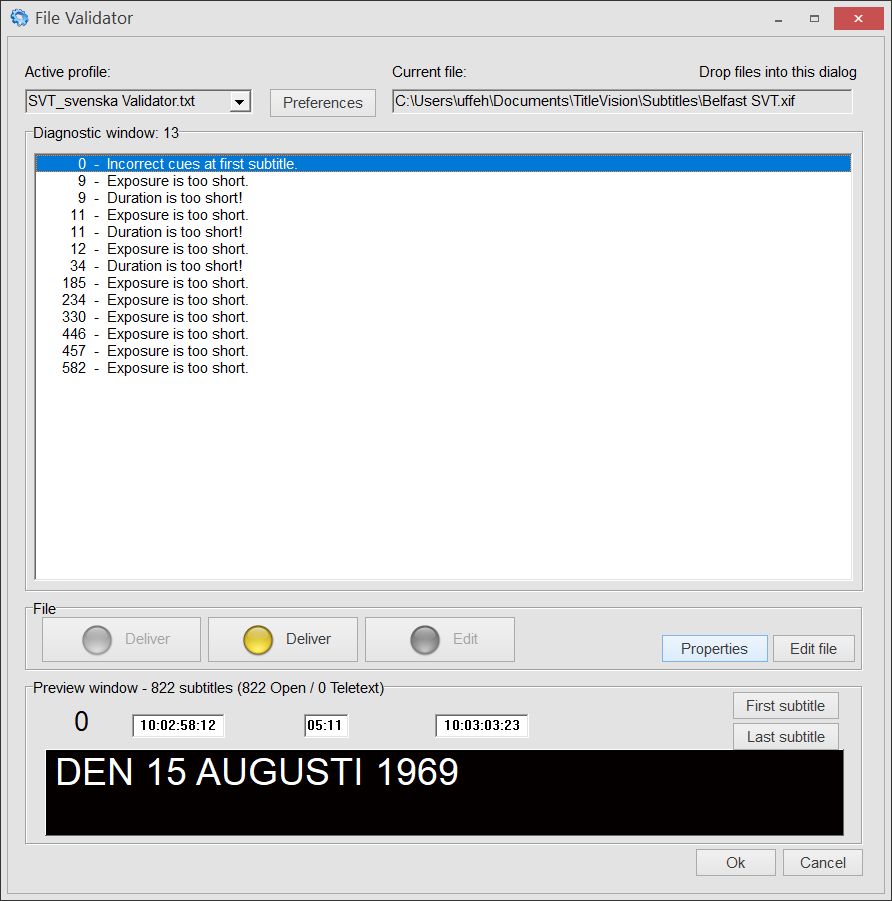
File Validator dialog – showing validation results with traffic light status
Traffic light system:
Once a file has been checked it will be given a Green, Yellow or Red light. It is only possible to deliver a file when the light is Green or Yellow. If the light is Red, the file contains errors and delivery is blocked.
Red warnings – delivery not approved:
•The zero subtitle has an unexpected timecode, other than 00:08
•The file contains inconsistent cues or has subtitles without cues
•The file contains the characters *, xxx or ??? in the subtitle (not in notes)
•The file contains double spaces
•The file has leading spaces on a line
Yellow warnings – delivery still possible:
•The zero subtitle is completely empty, information for file naming is missing
•The file contains subtitles below the minimum duration or above the maximum duration
•The file contains subtitles with more than 2 lines
Validator profiles:
Each profile stores the customer name, email address, final delivery format, and which global checks to enforce. Profiles can be customized by clicking the preferences dialog. Validator profiles are found in:
\Documents\TitleVision\ValidatorProfiles
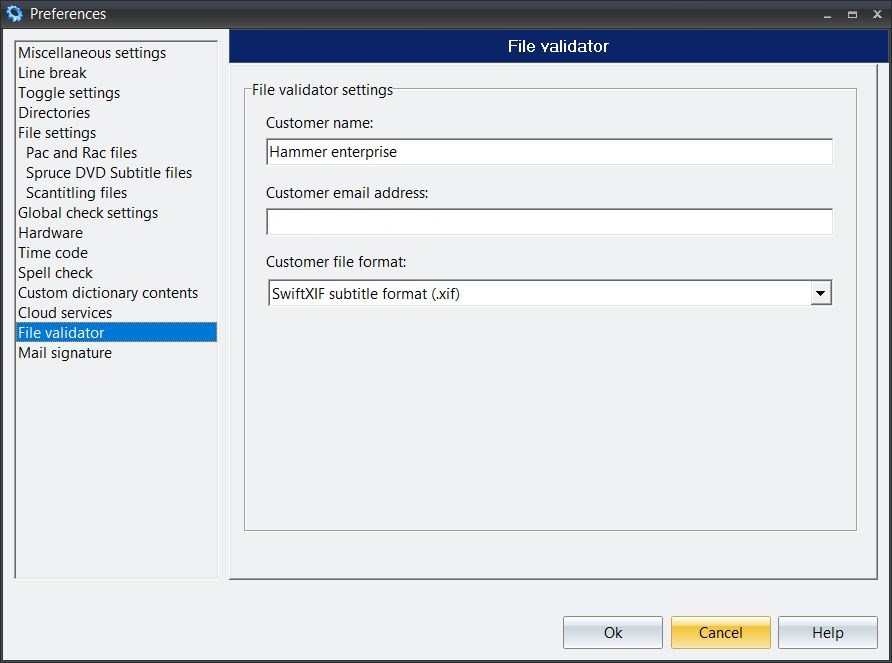
File Validator settings – customer name, email, delivery format and validation options
Delivering a file:
When clicking the Deliver button, the subtitle format will be decided by the "Customer file format" setting. If there is an email address configured, then that will be used to prepare a delivery email. The file will also always be saved to the "Subtitle files" directory setting in preferences.
Errors can be corrected in Sub Machine directly by clicking the Edit file button.
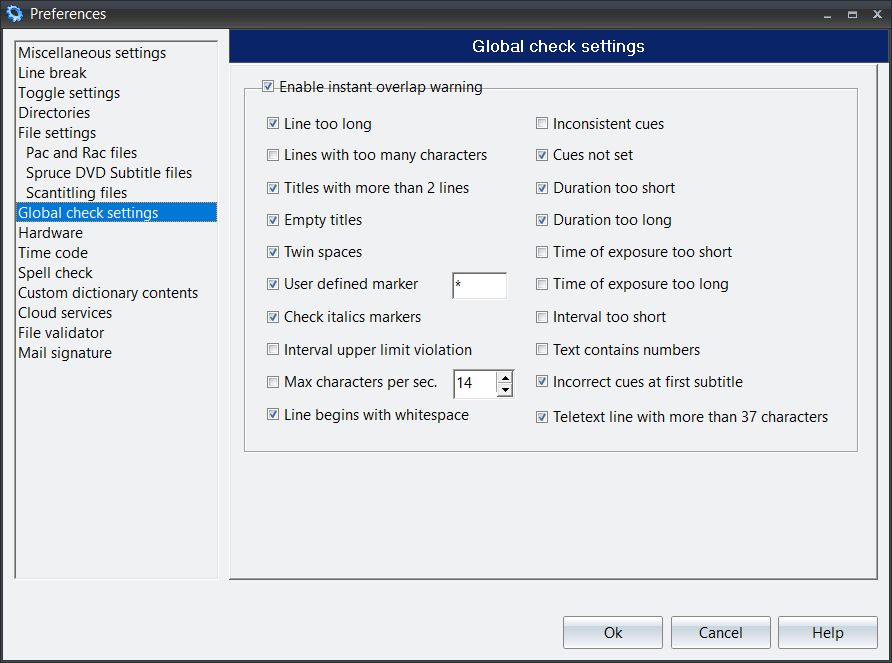
Global check settings – select which checks to enforce for the active profile
See also: Global check, Global check settings